
Error/Warning Messages – What They Mean
Error/Warning Messages - What They Mean
Always Upgrade to the latest version first! See above for latest version.
Chart Tab Switch Detected - Use Separate Windows for Multiple Custom signal Charts:
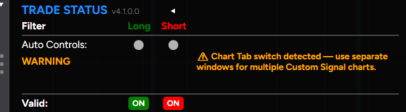
This error message appears from a few different scenarios.
- Multiple Tabs on the SAME chart - NEVER do this!
- Hidden Workspace - NEVER Do this!
- CLOSING A VPS - The Message can be safely ignored if it triggers from closing a VPS (as long as the chart was left open on your screen prior to closing)
Example of Chart Tab Error and how to load multiple charts on a screen. Always load one strategy per chart. always have the chart visible on your screen.
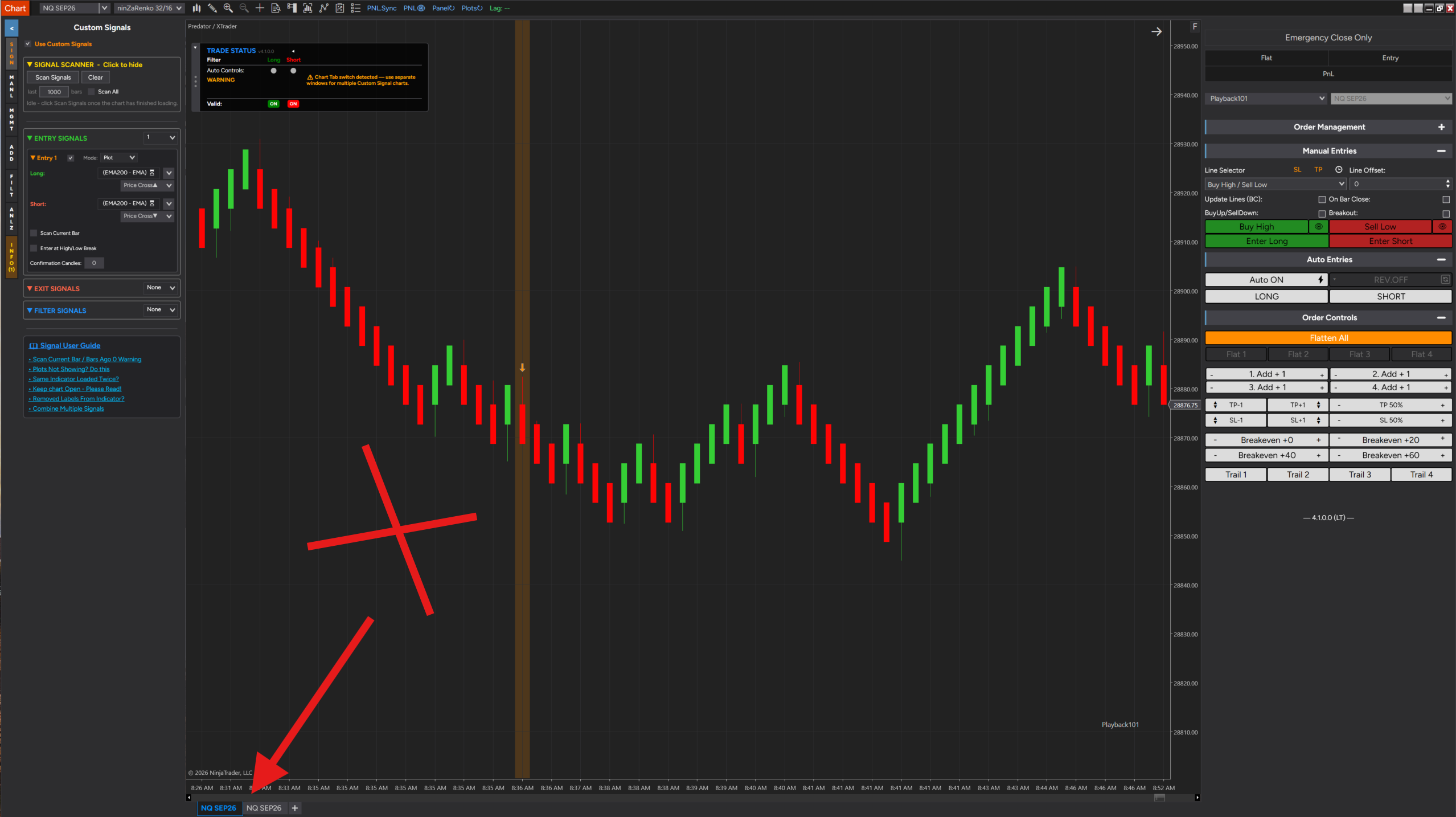
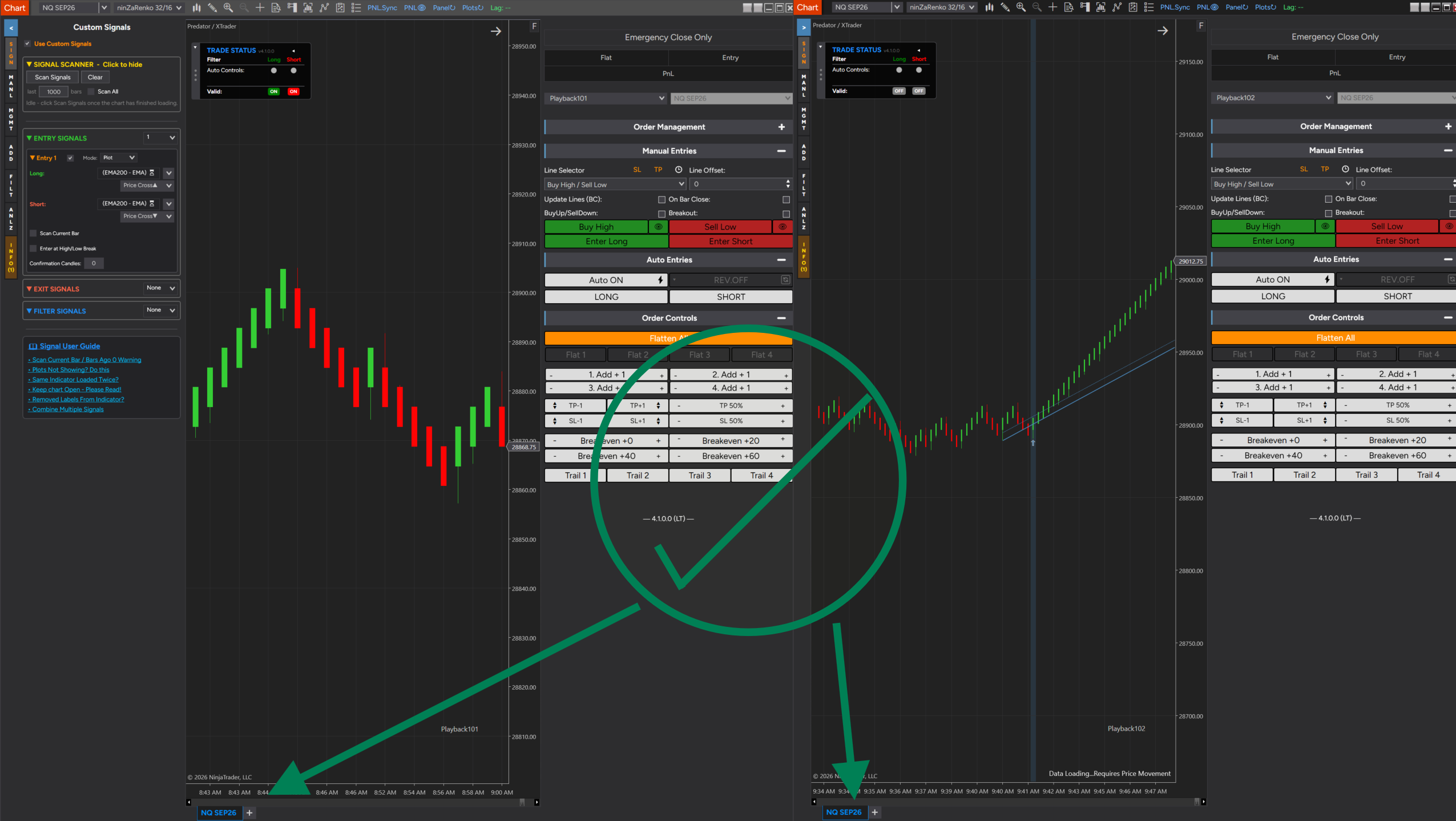
Chart Window Minimized - Restart Strategy and keep window open.
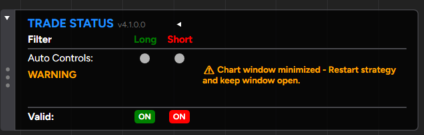
This message is letting you know that the window was minimized. It can be triggered from minimizing your window or hiding the workspace. NEVER do this!
Many indicators are coded in a way that they hide information required to read them from 3rd party indicators when they are hidden. Minimizing your window can unsync Filters and cause errors in detecting signals.
Always keep the chart open. You can make it smaller on your chart, but never minimize it so its hidden.
Indicator State Changed - Restart the strategy so custom signals can be read.
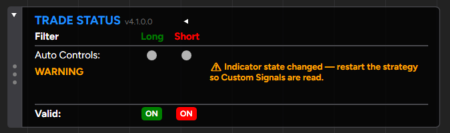
NEVER add indicators OR change indicators while the strategy is enabled. Always disable BEFORE making any changes. This will ensure all indicators are read properly during the strategy startup. If you see this message, restart your PredatorX so it can read everything again.
Order Placed at bid/ask fallback price 'X' - Original price out of safe range vs current market.
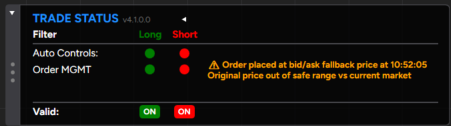
This is an automatic safety built into the PredatorX to prevent order errors from orders that are too close to the current price.
If a Stop or Target is set on the chart and is filled before it can process, it is very likely that it will just be cancelled by the broker/NinjaTrader without filling. This feature automatically pushes orders past the current Bid/Ask range to help prevent these errors.
This is a NinjaTrader article that explain the errors you can run into with orders that are too tight:
Order Errors
What to do if it happens?
- If you notice it only every once in a while or during extreme price action. No need to do anything. This is a safety working as it should. It won't affect future orders but you will simply need to restart the strategy to clear the message if you wish to get rid of it.
- If this is happening often, it likely means you have very tight orders. An example being setting a stop only 5 ticks away on a fast moving chart like NQ. Consider setting your orders further away to help prevent these warning messages
Risk Per Trade cannot cover Position at (Time) - Check account balance and Auto QTY risk.
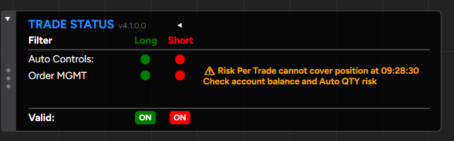
This error appears when your account balance is too low for the Auto Position size to calculate your position size properly.
- Check your account balance and ensure your account balance has not been liquidated
- Ensure your Risk Per Trade is not too high for the position that you are trying to take
- This error is most common to appear during market replay if your account goes into the negative
QTY Safety Triggered - Orders were closed or rebuilt. Restart the strategy when flat.
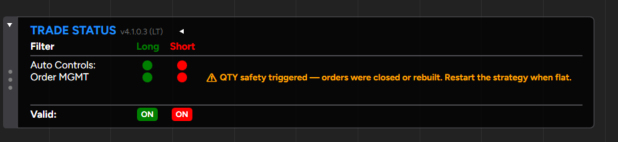
This error appears when there is a discrepancy between the position you have vs the position the strategy is supposed to have. This is a safety built in order to help prevent further losses from a potentially open position. (ENSURE you are on the latest Version!)
What Triggers It?
- Anytime you enter a trade and the defined SL and TP do not match the order that was set.
- It runs a scan within 1 bar of opening a trade. If the user cancels the SL or TP prematurely while the position is still open, it will cause this to trigger and automatically close the position
- This error is most often to appear during extreme volatile periods with small SL and TP (Small ninzarenko charts with news is a prime example). Consider increasing the distance or adding 30 seconds+ Cooldown timer to help ensure ordeer process: COOLDOWN TIMER
Handling - 07. Additional Filters:

- Close Order: This will close the position when the error is detected.
- Custom QTY Ticks: This will close any left over TP and SL and attempt tp rebuild them at a defined X Tick distance away.
- Rebuild Original: This will attempt to rebuild the SL and TP based on your original settings.
If it persists:
- Please Note down your Insturment, Bar Type/Size, Time and Timezone that the error happened.
- Go to your LOG Tab - Right click and Export CSV.
- Save your Current Predator X Template.
- If you are using a 3rd party indicator and the indicator is free, please send it to me as well IF possible.
- Please send any other related info. More info is better than less info. Please email us: Contact US OR send me a DM on Discord. Do NOT post your LOG in the public chat.