Do This At The Start Of Each Trading Session!
1. Clear Previous Strategies - 'Strategies' Tab
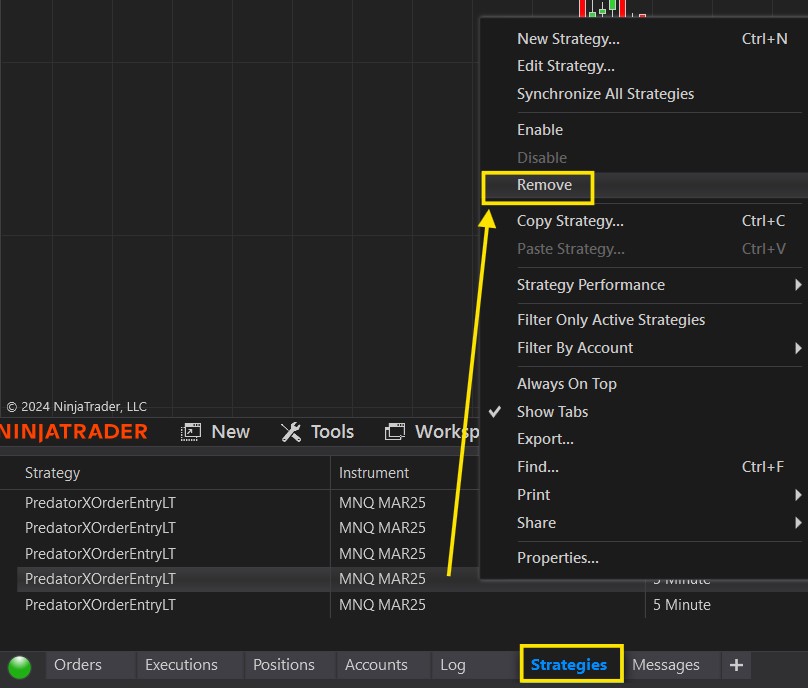
At the start of each trading session or when you restart NT8, you may find left over strategies in your NinjaTrader control panel – Strategies tab.
Make sure to remove these and start a new strategy at the start of each session. It is recommended to NEVER reuse one from a previous session.
2. Reload Historical Data / NinjaScript
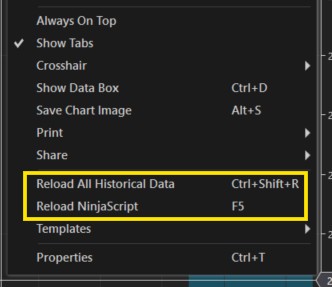
Ensure your Data and all 3rd party indicators on your chart are refreshed.
BEFORE enabling the strategy. Right click on your chart and Reload All Historical Data and Reload NinjaScript.
3. 'Show Historical Trades' - Turn OFF during Live Trading
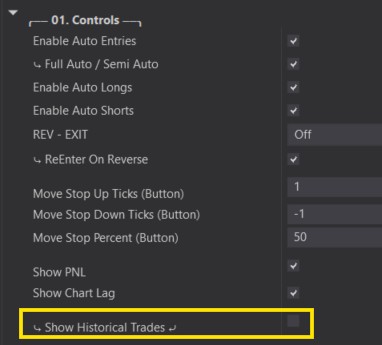
Using the ‘Show Historical trades’ feature can be a good way to back test and see past performance of a strategy. However, please keep in mind that these ‘Historical’ trades can interfere with live trades.
PNL Limits or Trade Counts will take into account historical trades, which can trigger and prevent trading before your strategy takes actual live trades.
For this reason, it is always recommended to turn this feature OFF while trading Live OR running your strategy on Market Replay.
4. Order Fill Resolution - Set to Standard
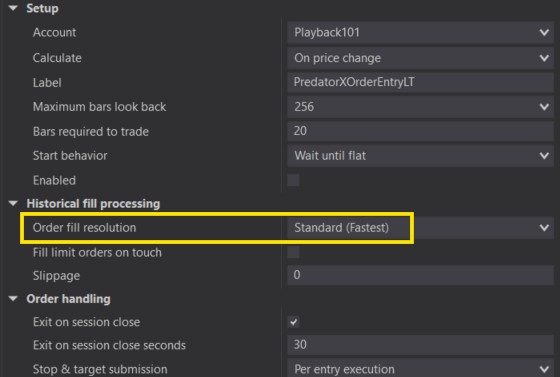
While back testing Historical Trades, a High Fill Resolution can help bring greater accuracy to your back testing results. However, please keep in mind that a High Fill resolution can cause issues with our Manual Entry system and with the ability to read Plots efficiently (Plot signals or Plot Stop/Profit Targets).
Please make sure this gets set back to standard while running your Strategy Live or on Market Replay.
5. Do NOT Interrupt Data Series
It is important to note with ANY strategy on NinjaTrader. We can NOT change the Data Series while the strategy is enabled! This includes the following:
- Time Frame
- Instrument
- Bar Size
If you wish to change any of these. Please Disable the Strategy first! Re enable once your new chart is loaded.
Not disabling the strategy before changing the Data Series can cause the strategy to become unsynced and orders may not be managed properly.
6. Choose Correct Account
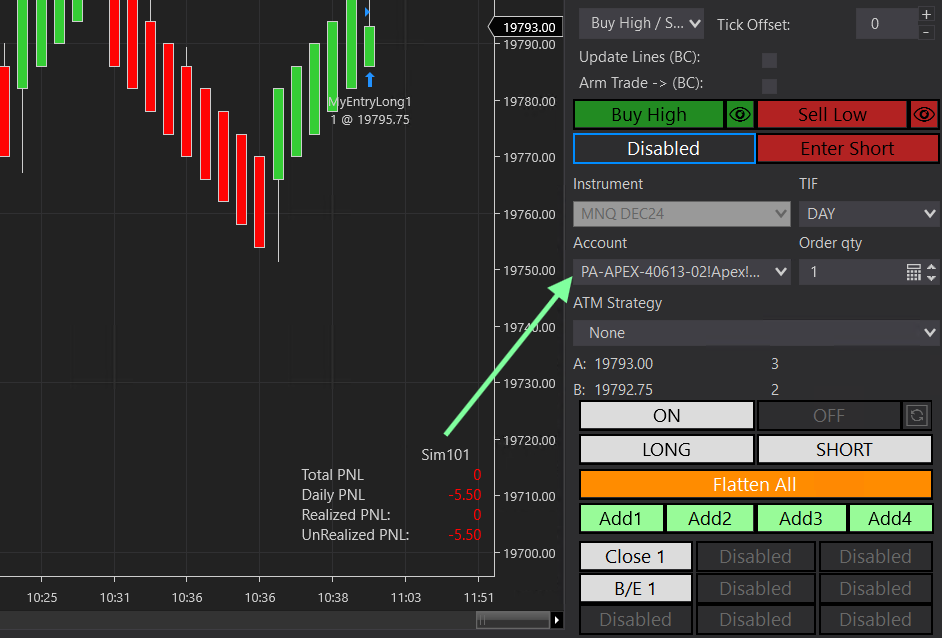
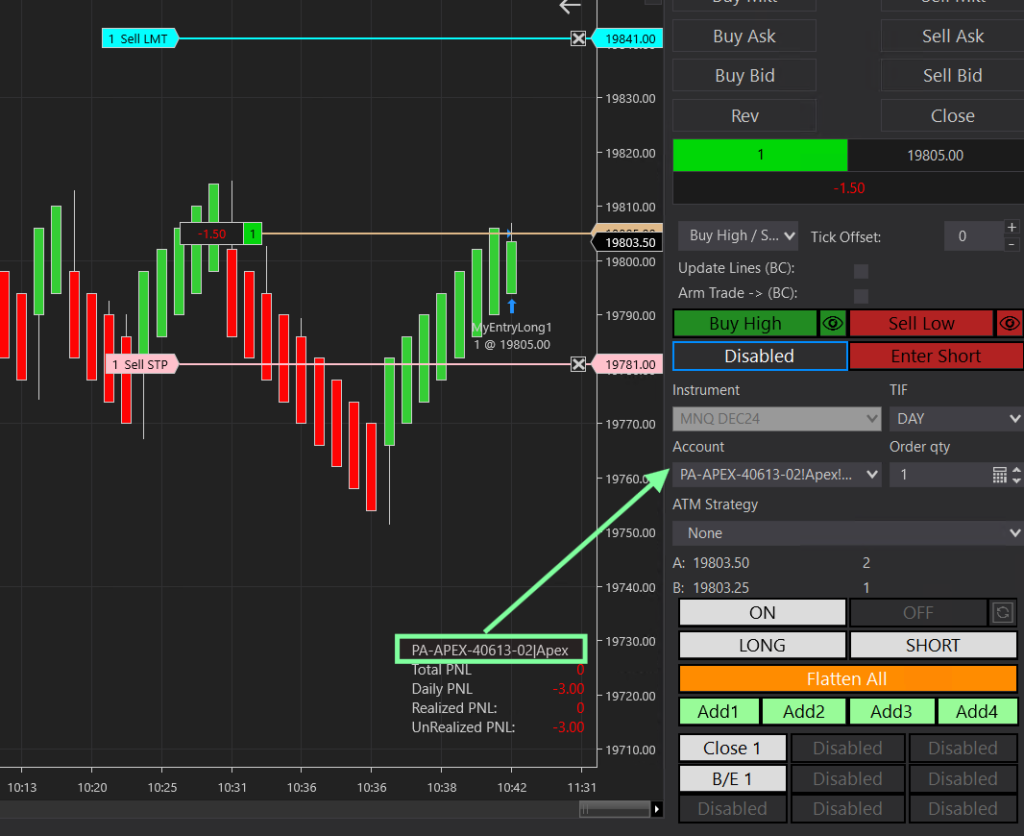
The account shown above your PNL display should always match your account listed in your Chart Trader panel. The account shown above your PNL is the account the Predator is taking trades on.
You’ll see below that the 2 accounts are different.
- PNL Display shows Sim101
- Chart Trader Panel shows PA account
Now you might be wondering. How do I switch my account if I selected the wrong one?
Simply disable your strategy and head back into your Predator Properties by right clicking on the chart -> strategies
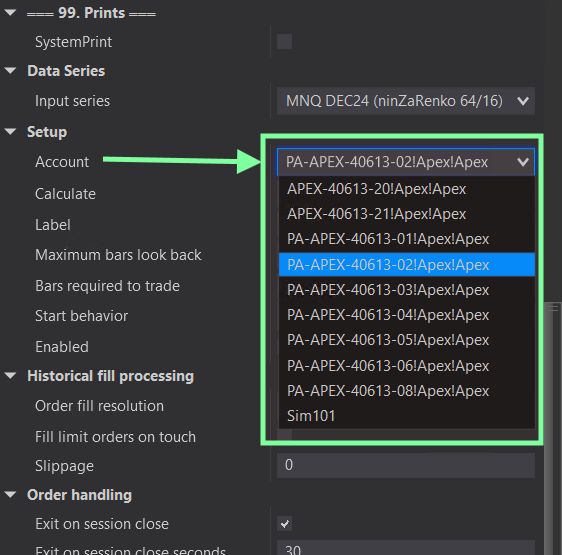
Scroll all the way down to the ‘Setup’ section and you will see your Account.
You can select the account of your choice from the drop down. Once you have selected your account hit Apply -> OK, then re-enable your strategy in the NinjaTrader Control Panel.
Same as above, make sure you select the correct account from your Chart Trader panel to ensure your Chart is showing all the correct trading data.
As long as they both match, you should see your Profit and Stop when you enter a trade.