
Time Filter Calculate
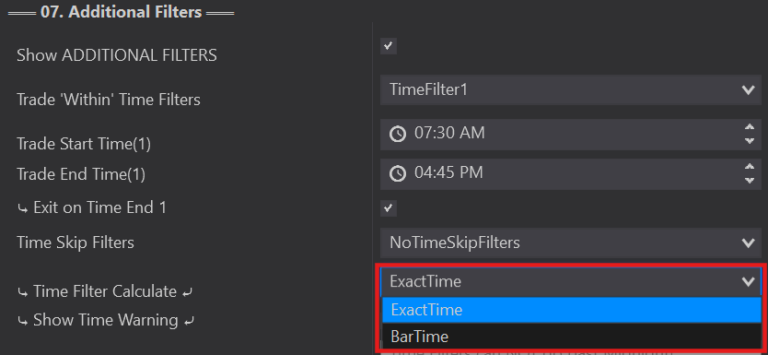
Choose Bar Time vs Exact Time for how time filters are evaluated.
Time Filter Calculate lets you choose the time visibility best suited to your strategy. Original versions used 'BarTime' (the time stored within the bar). On charts like NinZaRenko this isn't noticeable (bars update per tick), but on time-based charts the bars only show the bar's closing time.
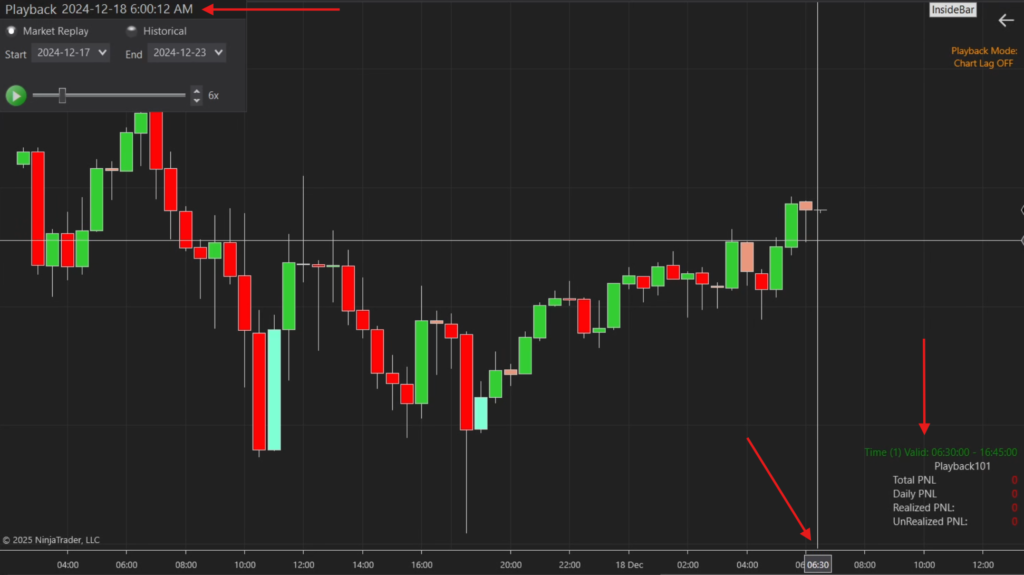
Uses the time stored within the bar. Example: the playback clock is just past 6:00am and your Time Start isn't until 6:30am, but the current forming bar closes at 6:30am — that's the time 'BarTime' uses, so your time becomes valid and can start taking trades before your actual clock time.
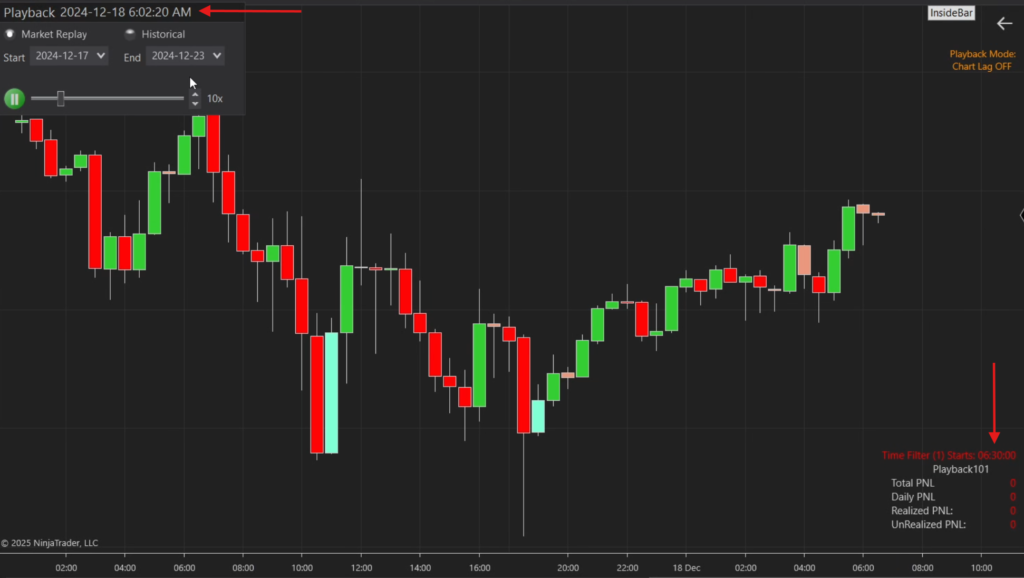
Only enters when that exact time is registered on your playback/real-time clock — making your time filters more accurate. Example: the playback clock shows 6:02am and your Time Within doesn't start until 6:30am, so no trades are active until the time label turns green at 6:30am. (Select Show Time Warning to see time labels.)
Time ‘Skip’ Filters
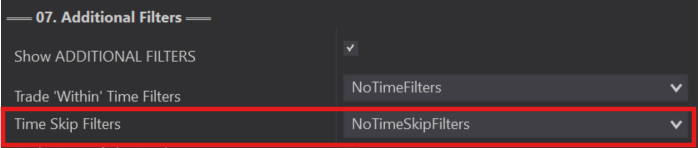
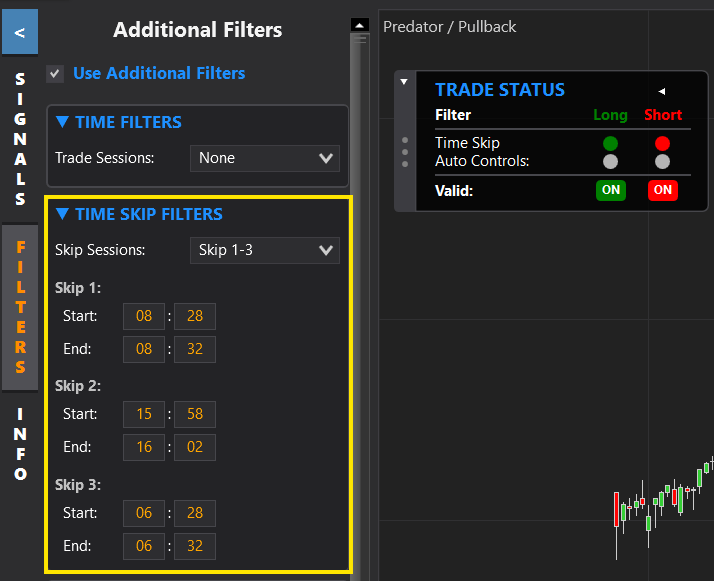
Block specific time windows you never want to trade.
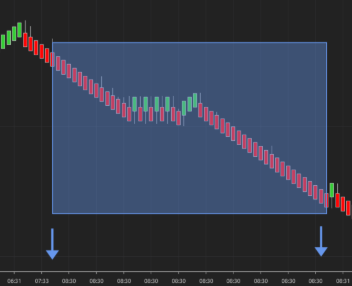
The opposite of your Trade Within filters — Time Skip Filters are specific times you do NOT want the Predator to trade.
Configure up to 3 skip windows. They can also be added or modified directly from the Predator's side panel in real time without disabling the strategy (side panel available on 3.6.0.0+).
Total Account Kill Switch
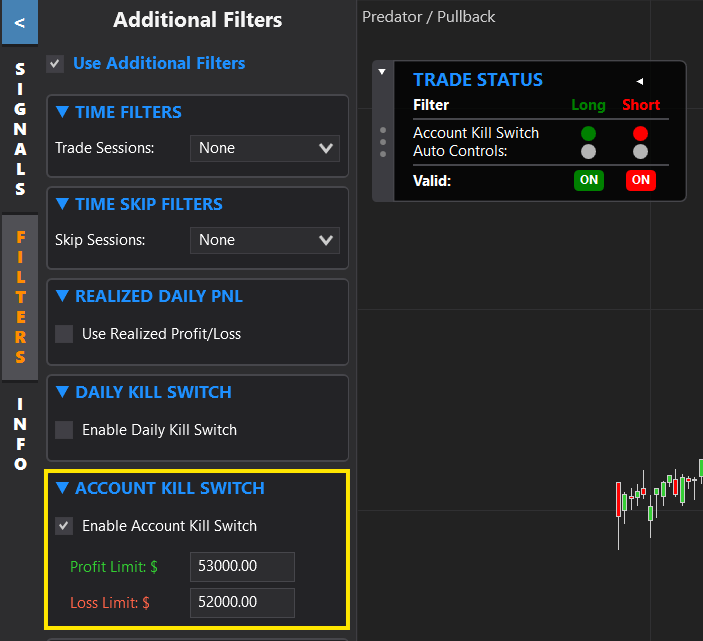
Stop trading when your account Net Liquidation hits a limit (real-time only).
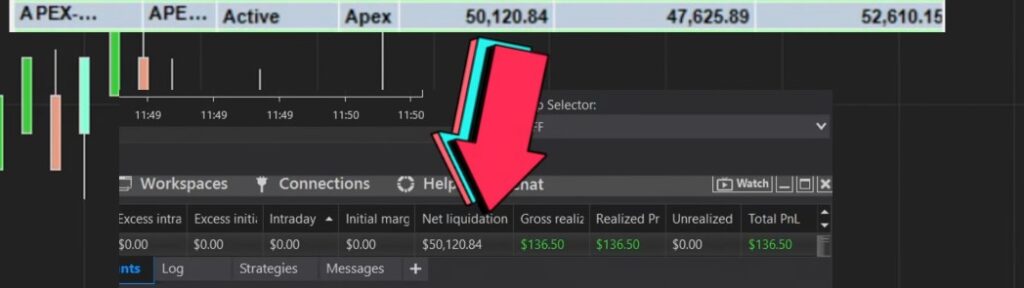
The Total Account Kill Switch exits your position when your account's 'Net Liquidation' reaches a defined profit or loss limit — useful for prop firms like Apex (e.g. to stop once an evaluation account hits its required PNL).
It differs from the Daily Kill Switch: the daily switch only looks at PNL within a day and resets daily, while the total switch watches the account's net liquidation and stops trading once that number is reached (exiting any open position).
Works in REAL TIME only — not for historical back-testing. It only exits trades entered by the Predator on the chart it's enabled on.
- You MUST know your actual account size and set this to match it, or it could stop trading early or leave a position open.
- Kill switch orders are market orders with no guaranteed fill price, so the final fill can land a little above or below your chosen PNL — give yourself extra room.
- Number of contracts, tick size and value all influence the final fill. Trading multiple charts on the same account can cause bigger wins/losses.
Trade Days Of The Week
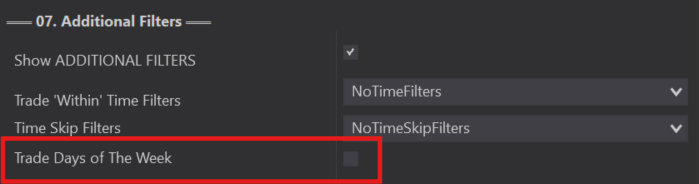
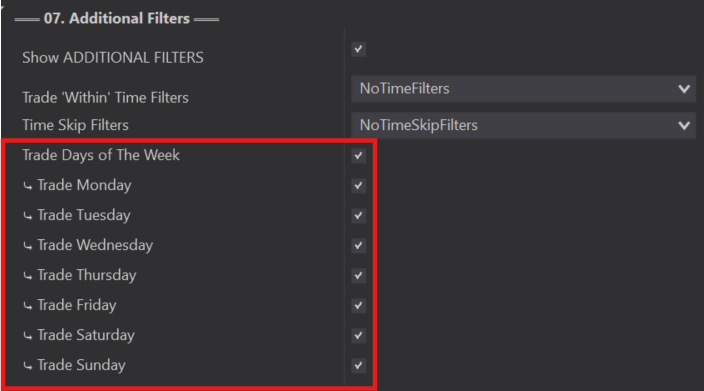
Pick which days of the week the Predator trades.
Specify which days of the week you do or don't want to trade. Most traders leave all days selected (default); to skip certain days, uncheck them and the Predator won't trade those days.
Trade ‘Within’ Time Filters
Trade \'Within\' Time Filters
Specify exactly when the Predator is allowed to take Auto Entries.
Trade 'Within' Time Filters let you specify exactly which times the Predator takes trades. Note: time filters work ONLY with your 02B Auto Entries — they do not apply to manual trading.
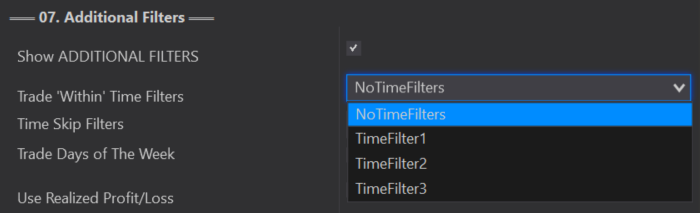
Select from no time filters - up to 4 'within' filters. Each has a start and end time, and all must be within a 24-hour period. You can also add/adjust them from the Predator's side panel in real time without disabling the strategy.
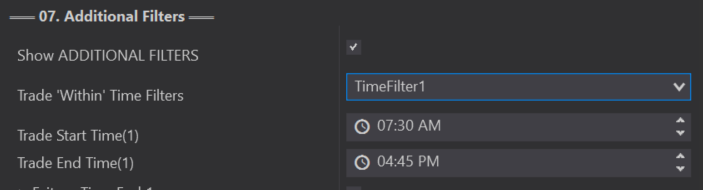
To trade overnight (across midnight), set your lowest time as TimeFilter 1 and your highest as your last filter — one starting at 12:00am and your last ending at 11:59pm. Example: TimeFilter 1 = 12:00am–3:00am, TimeFilter 2 = 9:30am–2:00pm, TimeFilter 3 = 8:00pm–11:59pm (continuing the next day at 12:00am).
Setting limits outside a single 24-hour period causes problems.
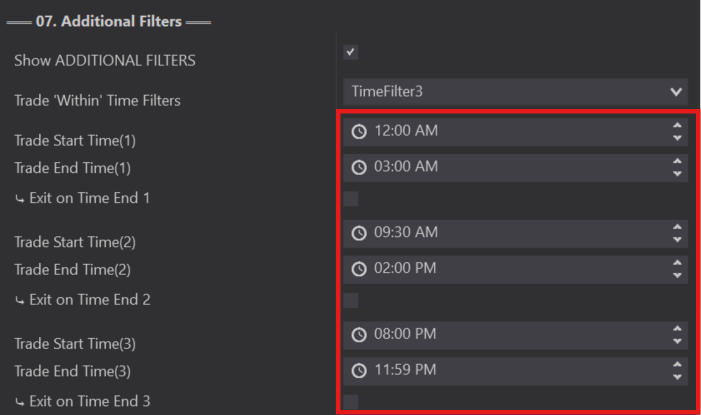
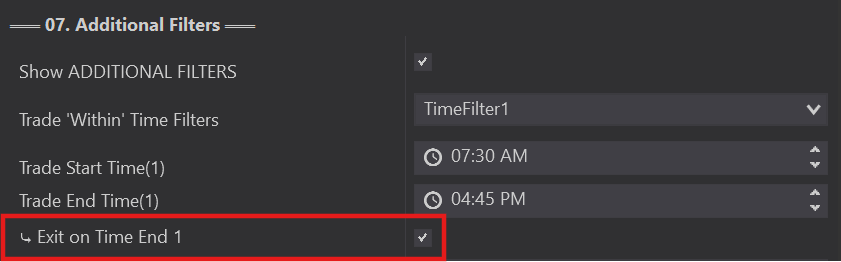
Within each 'within' filter you can choose Exit On Time End — any open trades are automatically exited at your trade end time. Left unchecked, trades remain active after your time end.
Do NOT mix with NinjaTraders own native Exit on Session end or a Prop firms Auto Exit at the end of th day. This could cause multiple orders being set at the same time and end up with an overfill condition.

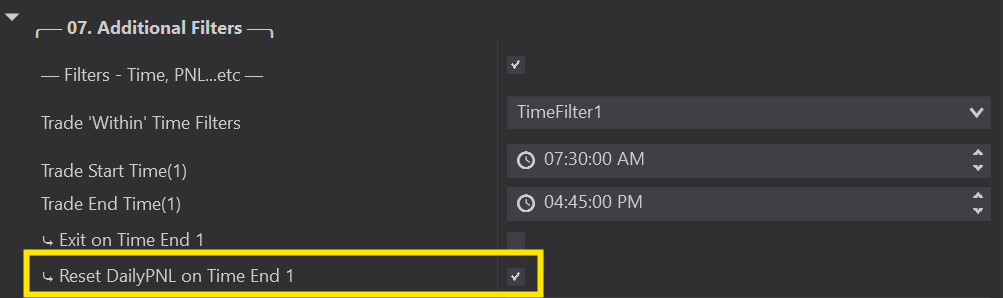
When selected, resets your Daily PNL at your trade end time and starts fresh when your start time begins.
When unselected, Daily PNL only resets at the start of a new day. Each of your 3 'within' filters can use this, and it's available from the side panel too.
Trail Stop Type
Trail your stop as price moves into profit — many methods beyond regular ATMs.
The Trail Stop Type sets how your stop loss automatically trails as price moves into profit — helping capture profit and prevent a winning trade from going back into the red. Predator X offers Several Trail options not available in regular NinjaTrader ATMs.
Trails the high/low of each new candle. Choose how many candles back it trails and the offset from the selected candle's high/low.
Uses the current ATR period and a user-defined multiplier to determine how far it trails. Trail at the close of a candle, or update continuously as the bar forms.
Uses the ParabolicSAR indicator to trail your stop. Select the ParabolicSAR period and an offset from that value.
The most like a regular ATM trail stop. Choose how often the stop moves up and how far it sits each time based on Tick Distance.
Trails your stop based on the Super Trend indicator. Choose the period and offset to trail.
Note: Requires the SuperTrend to be loaded on the chart for this to work.
Trails your stop based on risk-to-reward. Choose the offset, frequency, and profit trigger to customize.
Set your trail stop to any indicator plot:
- 'Show Historical Trades' must be OFF (works only in Real-Time / Market Replay).
- Your indicator plot must be on the chart BEFORE enabling the Predator.
- After enabling, wait for a price change (when your PNL shows).
It will appear in the Stop Loss and Trail Stop drop-downs. Use the Split Stop Loss button for different stops Long vs Short.
Defines when the trail stop starts — once price moves this distance into profit, trailing begins. Default is 1 tick (starts almost right away). Increase the distance to start trailing later.
Unrealized PNL Per Trade
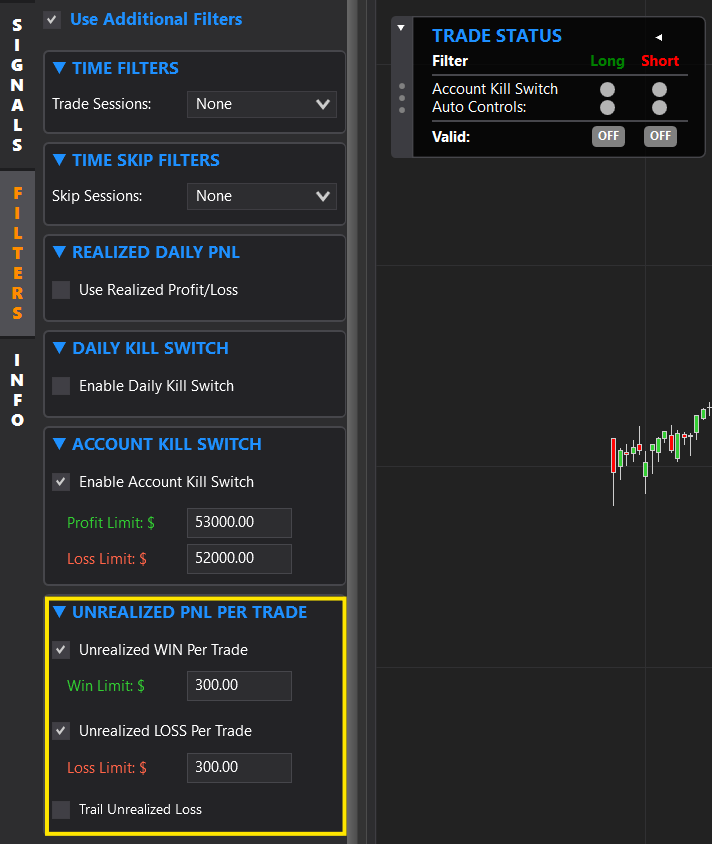
A per-trade loss limit — like a kill switch for each individual trade.
Unrealized Loss Per Trade limits the loss on each individual trade — like a kill switch, but per-trade instead of daily. Useful when your stop is set by candle size (which can expose bigger risk) or when adding to a position.
Note that this only looks at the UNREALIZED PNL. Having multiple targets can affect the unrealized PNL. See examples below.
Uses a static Unrealized Profit or Loss Limit. Whenever your unrealized PNL limit reaches this threshold, it will exit the trade.
You can trail your unrealized Loss Per Trade. Choose when you start trailing your 'Loss/Stop out'.
Once triggered, it will create a drawdown from the highest unrealized PNL achieved. You can only retrace from the highest unrealized PNL, the amount defined as your losss per trade.
Use Realized Profit / Loss
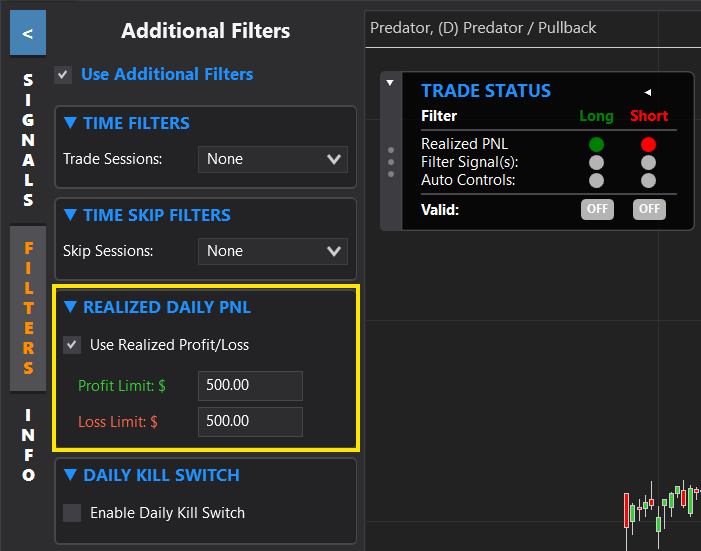
Set a daily realized PNL limit that stops new trades.
Realized PNL Limit will NOT exit a trade. It is NOT a Killswitch. This option will only prevent new trades once your realized PNL limit threshold is reached.
Example: If you have your Realized PNL set to $500 profit. Your trade can still go on. Even after it reaches $600. Once you exit and the realized amount is above $500. Then it prevents auto entries.
Win / Loss Count Limit
Cap your wins or losses per day, in a row, with optional trailing.
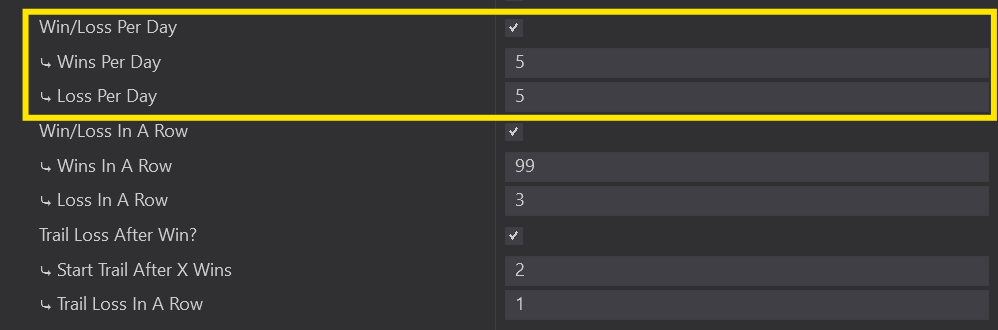
Limit your trading to a set number of wins or losses per day. A win/loss is determined by the PNL at the start of the trade vs the PNL when you fully exit (back to flat) — you can add to a position as many times as you like during a single trade and it counts as 1 trade. A breakeven/buffer counts as no trade.
How many wins or losses you can have in a single day. After reaching your win limit or loss limit, the Predator stops taking Auto Entries.
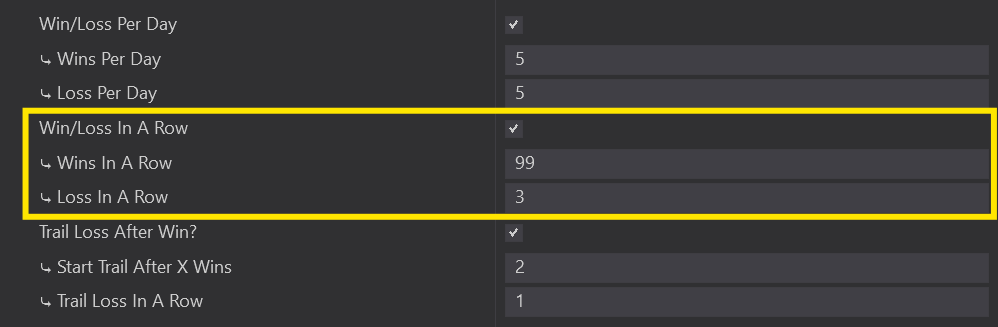
How many wins or losses are allowed consecutively. Multiple wins then a loss resets the win count to 0; multiple losses then a win resets the loss count to 0.
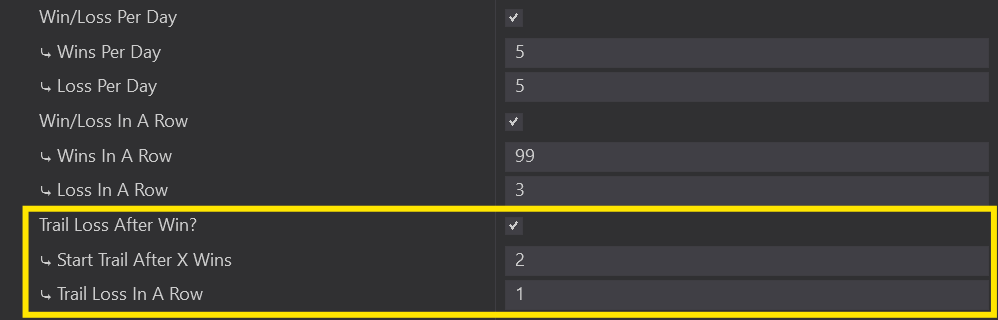
Used with Win/Loss In A Row to tighten your loss criteria as you win. Start Trail After X Wins: after this many wins in a row, your 'loss in a row' criteria moves up to the Trail Loss In A Row value. Example: 3 initial losses in a row allowed; once you reach 2 wins in a row the trail activates; you can keep winning, but as soon as 1 trade loses, it stops taking auto entries.
This stops trading after a net number of wins/losses is accumulated. The net is calculated as the Sum of all Wins/Losses.
- Win = +1
- Loss = -1
Manual Add – Breakout Add
Add manually, or only on a break/close of the previous candle.
The Manual Add option has some customization to let you add on to a position how you want.
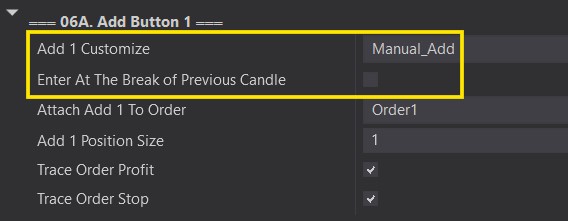
With this checked in Manual_Add mode, it only adds if current price breaks above/below the previous bar's high/low.
Long: enters if price breaks above the previous bar's high.
Short: enters if price breaks below the previous bar's low.
With both checked in Manual_Add mode, it only adds if current price closes above/below the previous bar's high/low.
Long: enters if price closes above the previous bar's high.
Short: enters if price closes below the previous bar's low.