
Common Troubleshooting Shorts
Enable Box Is Greyed Out
Maximum Position Qty Error
Fix EOD PNL
Profit & Stop Lines
Transfer Your License
Invalid License Key
Cannot See Labels For The Buttons
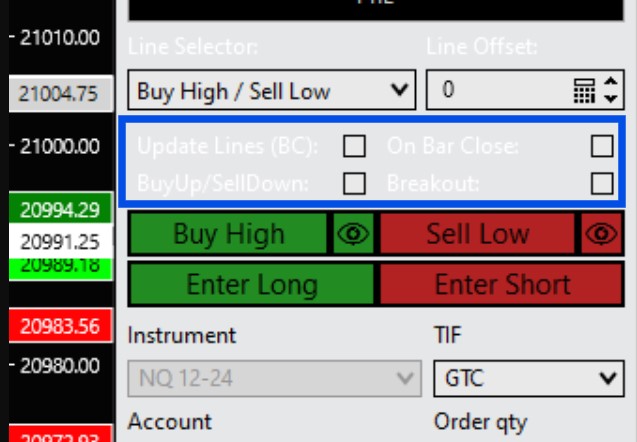
Depending on the NinjaTrader skin that you are using, it may make it difficult to see the labels from the generated buttons.
The Predator uses the same color from your charts AXIS for the labels. Please follow the next steps to change the label colors:
⤷ Ensure that you are on the latest version of the Predator: 3.9.2.4
⤷ 79. Customize Buttons
⤷ Customize Titles and Labels
⤷ Custom Label Color?
⤷ Change to any color that you prefer
https://youtube.com/shorts/fkyH9R8O0M8?feature=share
Connect With Us:
Related Posts
Have Another Question?
Data Loading Message
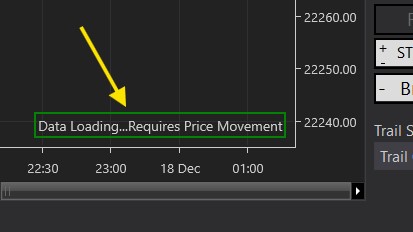
You will see this message when you first load the Predator. The Predator just requires a price movement in order to perform all required calculations and fully load.
If you see this message:
⤷ Ensure there is a price movement on the chart.
If the message does not go away:
⤷ Market is closed / No price movement until it opens.
⤷ Market is slow / No price movement yet.
⤷ You are on Playback and the market is paused.
Example shown in the Getting Started Video
Related Posts
Have Another Question?
Stopped Working After Changing Time Frames / Instruments
If you want to adjust your bar size or change your instrument that you are working with:
⤷ Always disable your strategy first.
Once you have adjusted what you needed to, re-enable your strategy and it should be good to go.
Related Posts
Have Another Question?
Buy High / Sell Low Lines Not Working
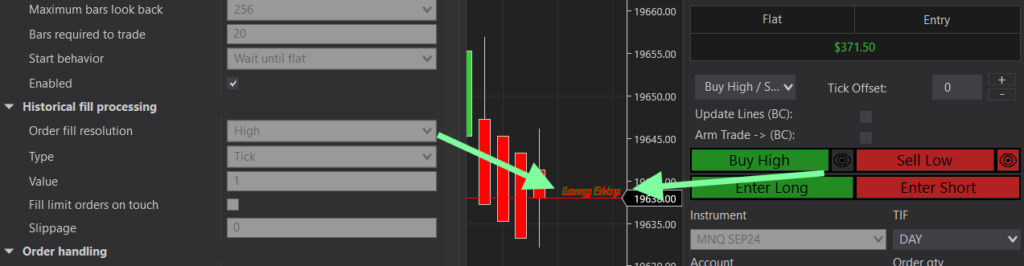
Buy High and Sell Low buttons are not setting the lines to the correct level. Setting lines at the same level. As shown below. This is likely because your fill resolution is set to High.
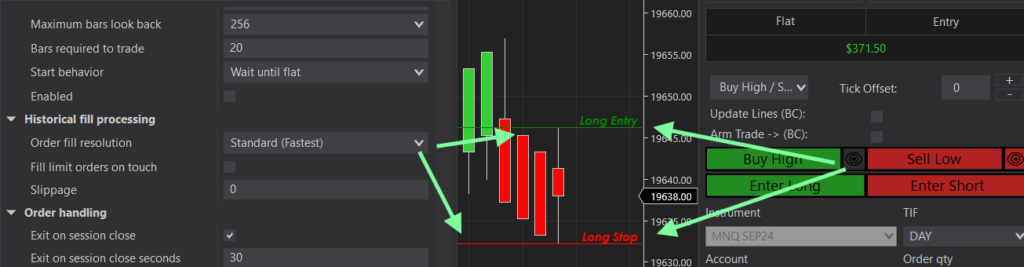
Ensure when using the Buy High and Sell Low buttons that your Historical fill processing is set to Standard. As shown below.
Related Posts
Have Another Question?
Chart & Indicators Disappear When Enabling
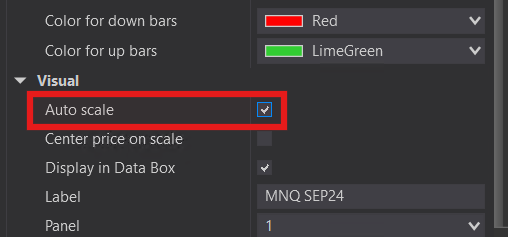
If your Charts & Indicators disappear when loading the Predator:
⤷ Right click on the chart → Data Series → Enable Auto Scale
⤷ You may need to reload the Predator again for the changes to take effect
Related Posts
Have Another Question?
Buttons Are Squished Together
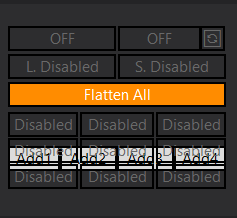
If you encounter a condition where the buttons may be overlapping. Please follow these steps:
- Please ensure that you are on the latest version!
- Right click on your chart tab (Bottom left hand corner) and ‘Duplicate in New Window‘
- Ensure that no other indicator or strategy is taking up the chart trader panel space. Load ONLY the Predator to avoid conflicts with other products.
– An example being my Free Order Entry buttons. Do NOT load both of them together because they use the same space. - Before enabling the Predator. Right click on your chart -> Reload Historical Data.
- In some cases, it may be necessary to restart NinjaTrader in order to refresh the chart panel.
It is highly recommended to use a separate window for each instance of the Predator. This is especially true when using the Custom signal system to read external 3rd party indicators.
Import Failed Error
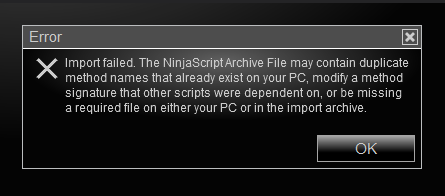
NEVER drop files manually into your NinjaTrader documents folder.
This will cause a problem with importing!
Ignore this next step and skip to the next if this is your first time importing.
- Remove any old version you have of The Predator X Order Entry
- Remove PredatorIndicators
- Do NOT Remove Elite Licenser (This was required for previous versions but we have updated and this is no longer the case so no need to remove)
If you removed Elite Licenser by accident, no worries.
It will re install when you import Order Entry or Pullback.
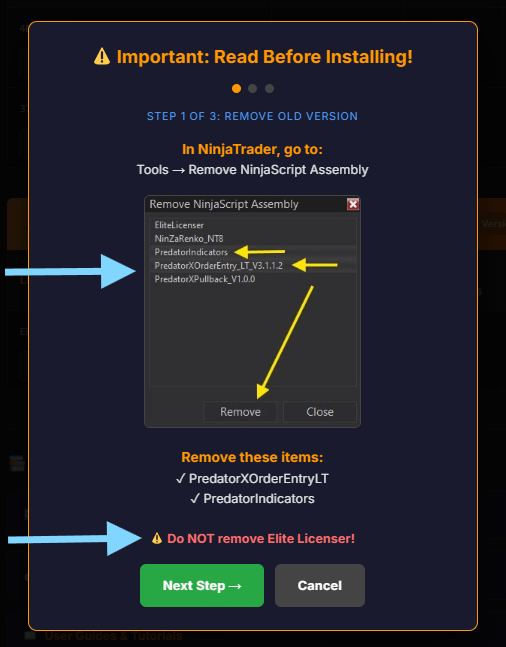
Watch Full Getting Started Installation steps here!
No Errors? Move on to the next step.
If everything is removed and still giving you problems:
- Go to your NinjaTrader control panel → New → NinjaScript Editor → Right click in the middle of the new window → Compile.
- If it shows any orange errors on this page → These must be resolved first.
- If they are from another 3rd party indicator → reach out to the developer. They will have to be removed or fixed.
- If they say Predator X Order Entry. Send an email to support@tradesaber.com with a screenshot of the ERRORS and a screenshot of Tools → Remove NinjaScript assembly
No Errors? Move on to the next step.
Upgrade to the latest version of NinjaTrader.
- Go to your NinjaTrader control panel → Help → About.
- Confirm your version number matches this one: NinjaTrader Download
- If not, please upgrade to the latest version.
- If you are already on the latest version or cannot upgrade to the latest for whatever reason.
- Open the installer for your same current version to run the NinjaTrader Repair.
Some much older versions or ‘cracked’ version of NinjaTrader may be incompatible with the Predator X.
If still an issue. Move on to the final step.
OneDrive in NOT compatible with NinjaTrader and the cause of many Import Related errors. Symptoms may vary from user to user but OneDrive errors are very common NinjaTrader.
Symptoms Include:
- ‘Import Failed. The NinjaScript Archive File may contain duplicate method names’ error message when importing.
- Unhandled Exception and NinjaTrader shuts down.
- Check your Log Tab for a similar message: C:UsersadminOneDriveDocumentsNinjaTrader 8tmpImportBackup
- Can NOT import ANYTHING. Try importing a different product. If it gives problems as well, then very likely a OneDrive issue.
How To Fix: (Clean Install will remove all exsisting products. It will be like starting over)
The most common way to fix is to do a complete clean install of NinjaTrader.
- Close all running applications.
- Navigate to your Documents folder > Right-click on the ‘NinjaTrader 8’ folder > Rename > rename the folder to ‘NinjaTrader 8 OLD’. DO NOT delete this folder.
- Uninstall NinjaTrader within Windows Control Panel.
- Navigate to C: > Program File (x86) > Delete the ‘NinjaTrader 8’ folder if it exists
- Disable OneDrive.
- Reboot your PC.
Then reinstall
- Login into the NinjaTrader Account Dashboard
- Click “Download” in the bottom left-hand corner of the sidebar
- Once the installation had downloaded, ensure any previous version of NinjaTrader is closed before running the installation package.
I always recommend to reach out to NinjaTrader support(support@ninjatrader.com) before restarting everything. They may be able to offer another solution.
TradeSaber is NOT NinjaTrader support. However, the above is often the best and fastest solution to this issue.
Unhandled Exception Error Shuts Down NinjaTrader
If you encounter an Unhandled Exception Error and then NinjaTrader shuts down immediately after trying to enable the Predator. We must ensure that it is being loaded correctly in order to avoid these errors.
Ensure all Strategies are cleared from your control panel before loading a new one! NEVER reuse an old strategy from a previous session!
Loading the Predator on a Chart:
⤷ NEVER right click on your NT8 Control Panel → New Strategy. This will cause an issue when loading the Predator.
⤷ ONLY load it by Right clicking on the CHART → Strategies → Load the Predator → Enable on the control panel.
Loading the Predator on Strategy Analyzer:
⤷ Stick to ‘Backtest’ mode. Optimizer can easily create hundreds of thousands of iterations and cause issues.
⤷ Select ‘Show Historical Trades’ from 01. Controls.
⤷ Make sure you are connected to LIVE Data.
⤷ Select the Instrument you are back testing.
⤷ Select the Bar Type / Time /Size for the instrument
⤷ Select the Date Range you want to back test
⤷ Custom Signal Entries cannot be used with Analyzer!
Examples of these and many more questions can be answered from this video. It is highly recommended to watch it the whole way through!
https://youtu.be/BihSBEzVgC4
Connect With Us:
Related Posts
Have Another Question?
Enable Box Is Greyed Out After Changing To Playback / Live

Changing between Playback and a Live Connection will require a new Strategy to be loaded!
If the Enable box is greyed out and cannot be clicked:
⤷ Ensure your connection is Green on the lower left hand of your control panel.
⤷ Remove ALL strategies in the control panel Strategies Tab.
⤷ Load a NEW strategy by Right clicking on the chart → Loading the Predator → Enabling the NEW strategy.
⤷ Ensure that an account is being selected within the Predator properties. In rare cases you will have to manually select the Playback101 account.
Video Example of a greyed out Enable box can be found in the GETTING STARTED VIDEO.
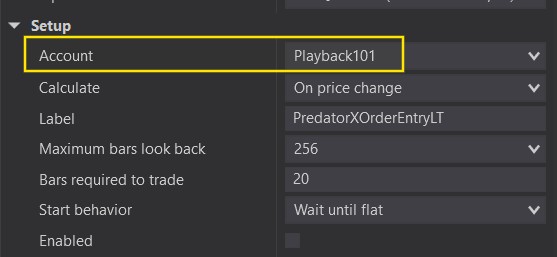
Please ensure that an account is actually selected within the Predator Properties!
https://youtube.com/shorts/NFQcAiQz3YY
Connect With Us: