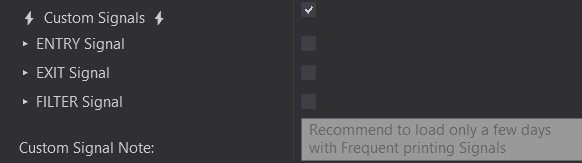
OBJECT Signal Troubleshooting
This article will go over troubleshooting tips if you find that your Signals are not working. There can be various reasons, but please read these steps carefully. They should resolve any Object Signal related issue.
- Please start with this article for general Auto Entry troubleshooting: Trade Troubleshoot
- 99% of the time, it is something very simple that will get everything working again.
The video below shows a good example of how the OBJECT Signal System works.
Please Continue below for more troubleshooting steps!
Step 1: Confirm Latest Version - 3.1.1.3 / Start With Basics
Make sure that you always upgrade to the latest version of the Predator before troubleshooting! Current Version: 3.1.1.3
Follow these steps to upgrade to the latest version: How To Update
After confirming that you are on the latest version. Please make sure to start with the basic Trade Troubleshooting. These steps will cover common scenarios and show you how to reset your template so we can start fresh with the troubleshooting process. Please go through these steps first. Confirm ALL of these steps have been followed and come back with a reset template for now.
Step 2: Use Separate Windows for Charts - Do NOT Use Tabs or Minimize Windows!
It is recommended to NOT use TABS while using Signals.
Use a Separate Window for each Chart that you have the Signals Enabled on.
- Many indicators are coded by default to not print signals while in a different tab. This can cause trades to be missed because there is no signal printed while the chart is minimized or hidden behind a separate tab!
- Different windows will ensure the signals are always on the chart! Ensure every window is expanded.
Step 3: Check Your Validation System
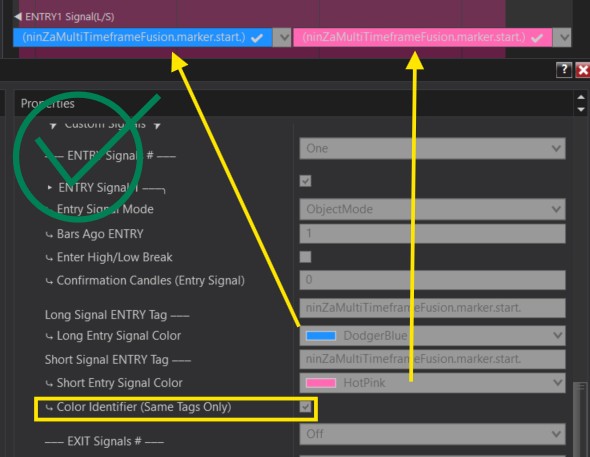
General Validation System Info:
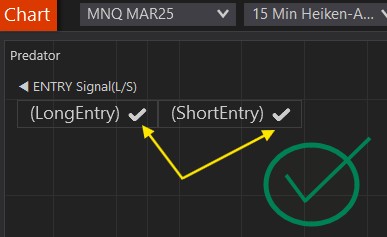
Do you have check marks next to your Long and Short Signals?
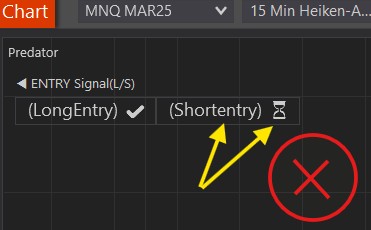
The Hourglass only means that a signal with that specific tag does NOT currently exist.
It can mean one of two things:
1. The signal has not showed up yet anywhere on your chart.
• If you scroll back and that signal is not anywhere on your chart, then the validation system will remain as an Hourglass until the signal shows up in the future! (Common scenario with ORB it if has not broken to one side recently)
• It will turn to a checkmark if the signal appears in real time and it is a valid tag.
2. If you confirmed that the intended signal does exist on your chart but you are still seeing an Hourglass, it likely means there is a typo or there is wrong formatting.
Color Identifier:
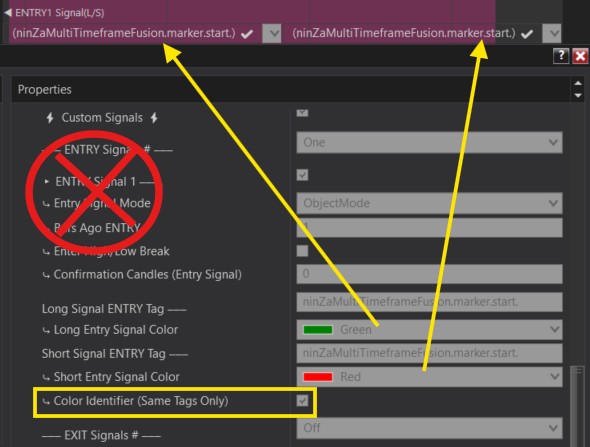
In some cases, if the Signal TAG is the same for both, Longs and Shorts. You will be required to use a color identifier to tell them apart and ensure the Predator X only takes trades in the correct direction.
IF you are using a color identifier. The Validation system should display the color selected.
You may still see a ‘Check mark’ in your validation system to let you know the TAG is OK. But if you select the Color Identifier, you should also see the same color appear in the validation system!
You only need a color identifier if the TAGS are the same!
Leave this option unselected unless Long and Short are the same!
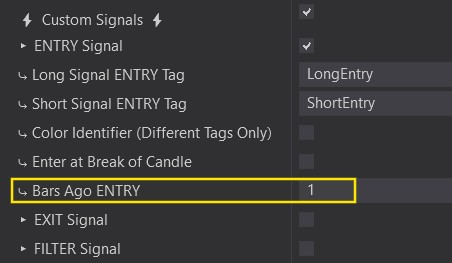
Step 4: Check Bars Ago ENTRY/EXIT/FILTER
It is recommended to test Signals with Market Replay. Using Historical testing may appear as if the Signals are delayed. Market Replay will give the most accurate results to how it will actually perform in real time.
Bars Ago ENTRY 0:
⤷ Should be used ONLY for indicators that print signals on the same bar that is currently forming.
⤷ If your indicator prints a signal only after the bar closes, then do NOT change this to 0!
Bars Ago ENTRY 1:
⤷ This will be the default for 99% of indicators. If your indicator waits until the bar closes to print a signal. Use this option.
Step 5: Enter At Break Of Candle
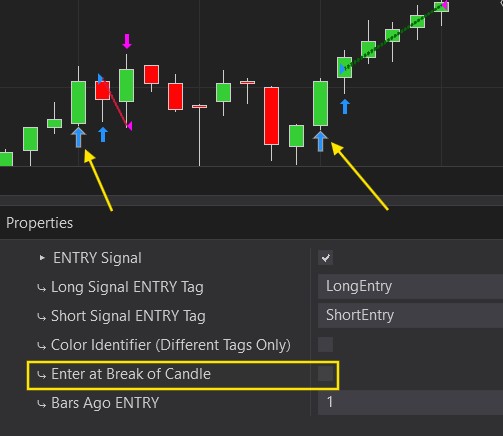
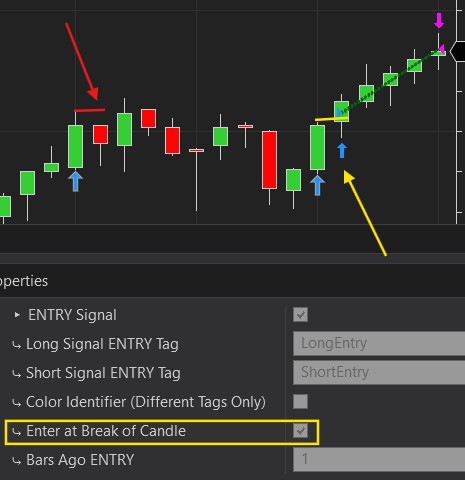
Having Enter At Break Of Candle selected will make it so that the price of the current bar must break above/below the previous bars High/Low once the signal is detected. If it does not, it will skip the trade.
Enter At Break UNCHECKED:
⤷ Enters when the Signal is detected.
Enter At Break CHECKED:
⤷ Enters when the Signal is detected AND the price breaks above the previous bars High (Long example).
⤷ The first signal we get here does not go above the High of the previous bar, so there was no entry.
Step 6: Check Other Filters
The Predator has many built in options to help Filter your trades. This comes in the form of built in indicators. Moving Averages, Super Trend, ADX and more.
We also have additional filters such as Time Limits, Trades Per Direction or PNL Limits. These can all lead to conditions that prevent trades at times.
It is highly recommended to test your strategy on Market Replay first so that you understand how it will enter trades OR if a condition exists that could prevent trades.
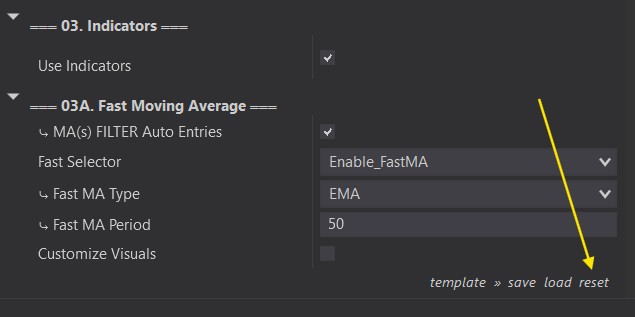
If all of the other steps have been followed and it is still not entering trades. Please click the ‘reset’ button on your Predator properties. This will reset your template (save first if you do not want to lose what you’ve built).
However, once you reset. I recommend building your template again from scratch. Start with ONLY the Signal for now.
Make sure it takes trades on replay first without any other condition. Start adding one filter at a time and keep testing until you figure out what may have caused an issue. Please see the rest of the guide for information on the filter that may be preventing trades for your signal.
Step 7: Does Your Indicator Print After a Move Has Already Happened?
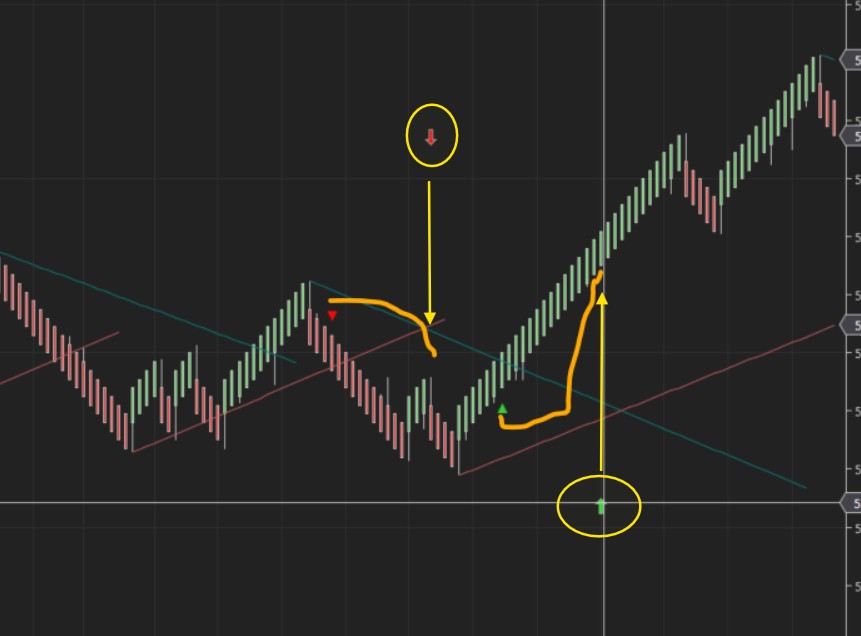
We must be aware of when our indicator prints a signal that the Predator can read. There are some indicators out there that print signals much later, after a move has already occured.
This can make it seem like the trade was missed. However, the truth is that the Signal was not printed at that time. The indicator just printed the signal much later to make it appear better than it is.
Here is an example. The triangles are the Signals printed from the indicator. However, using Strategy Builder, we were able to print a separate arrow so that it prints when that indicator signal is actually detected.
You can see several bars have passed before the ‘Signal’ was printed. The Predator will not be able to go back in time to catch a signal that did not exist at the time.
We must ensure that the indicator prints a signal on the most recent candle.
Step 8: Is There A Number In The Tag?
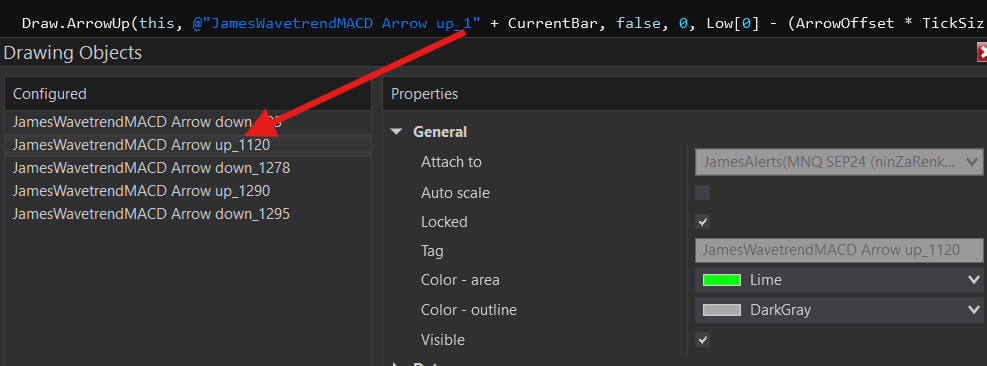
Some indicator tags may have a number at the end of the TAG but BEFORE the CurrentBar code. This can be confusing at times because the number which is part of the TAG will blend into the CurrentBar code.
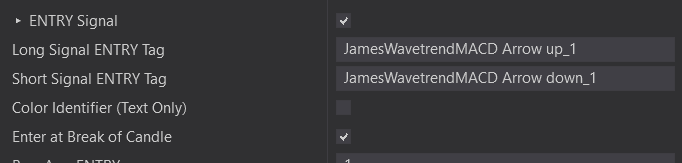
Below is an example. The ‘1’ is part of the “TAG”, however, it blends in to the CurrentBar code inside the Drawing Object properties.
We must include every part of the Tag, EXCLUDING the CurrentBar number.
However, we must include any numbers that are part of the TAG itself and not the CurrentBar. See below for an example of how this one should be typed into the Predator.
How to find out if your indicator is coded this way?
⤷ If your indicator is open Source. Open up NinjaScript Editor and look at the TAG like show in the above example. (Screenshot 1 of this Section 6)
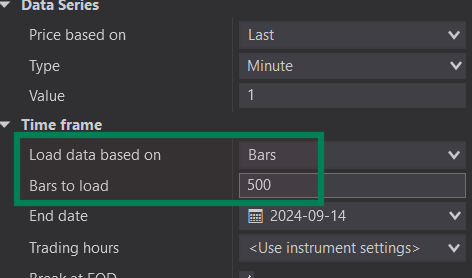
⤷ Alternatively, if the code is locked or you are not comfortable looking at the code. You can change the number of bars loaded on your chart.
⤷ Right click on the chart → Data Series → Load data based on: Bars → Load less than 1000 bars (500 in the example should do for most).
If you only load 500 bars on the chart. But your Signal has 4 digits or more after the TAG. It likely means that those initial digits are part of the TAG.
Step 9: What If I'm Still Having Problems? - Please Send Us The Following!
If you have confirmed you have the latest version of the Predator installed and none of the above steps have resolved your issue.
Please use the Contact Us form at the bottom of this page OR send me a DM on Discord (TradeSaber(Dre)).
Please include the following information!
Not including some of these will result in a delays. I will ask for these if you do not send them in!
1. Screenshot of your ENTIRE screen.
• Include the entire Chart Trader Panel, including the version number!
(Send multiple screenshots if you cannot fit the entire chart trader in one screenshot)
• Include the top Tool Bar.
• Include the entire chart with the VALIDATION SYSTEM SHOWING!
• Point to the Signal it was supposed to take.
• Include Lower Time Stamps and any chart tabs that may be present.
2. Please send a screenshot of the Draw Object Properties (Double click on the object signal)
• Include the entire Draw Object screen.
• Include the left ‘Configured’ column.
• Include the Right ‘Properties Column’
• If the Tags are different. Send a screenshot of 1 of each being highlighted.
• EXPAND IT so I can see the ENTIRE Tag.
3. SAVE your Predator Properties XML Template and send it to me.
• How To Send Templates
• Or Take a screenshot of ALL of your Predator properties and send it to me. All the way from the Top to all the way to the Bottom.
• Even if you don’t think it’s important, please send all of the info.