ENTRY Signals – How Do They Work
With the Predator, we have the ability to automate Signals from 3rd party indicators or strategies. Once a signal is detected by the Predator, it can enter a trade and manage it according to your own conditons.
In this section, we will cover how to create our Entry Orders with these signals and the different ways we can customize to enter when we want.
- Draw Object Signals – Example: Arrows or Text.
- Plot Signals – Example: +1/-1 plot value signals.
1. Draw Object Signals
Regular Signal Entry
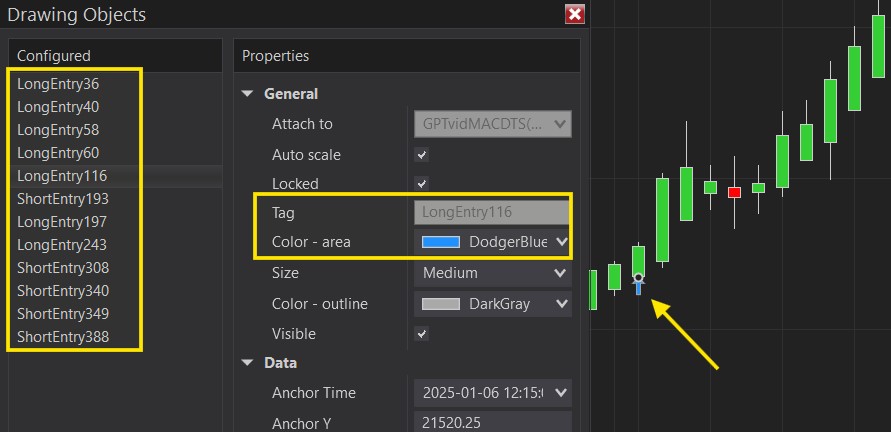
Once you have your Indicator loaded on your chart, double click on a signal you want to use. It should open up the Drawing Object Properties.
⤷ If it opens up the Indicator properties. This is a Plot and NOT a Draw Object. Please see the Plot Signal Entry section below for instructions on setting up your Plot Entry.
A valid Draw Object signal will look similar to the picture above. “TAG”+ CurrentBar. This is the only correct format to automate DrawOnject signals at this time.
- The TAG portion in the above screenshot is the “LongEntry” and the “ShortEntry”.
- The CurrentBar are those numbers you see afterwards.
You will need just the TAG part and type that into the Predator X Order Entry.
For Example, just note down the ‘LongEntry’ and ‘ShortEntry’. That is what we type in to the Predator in order to automate it.
======
Once you have your Tag Information, open up the Predator Properties. Right Click on the Chart -> Strategies
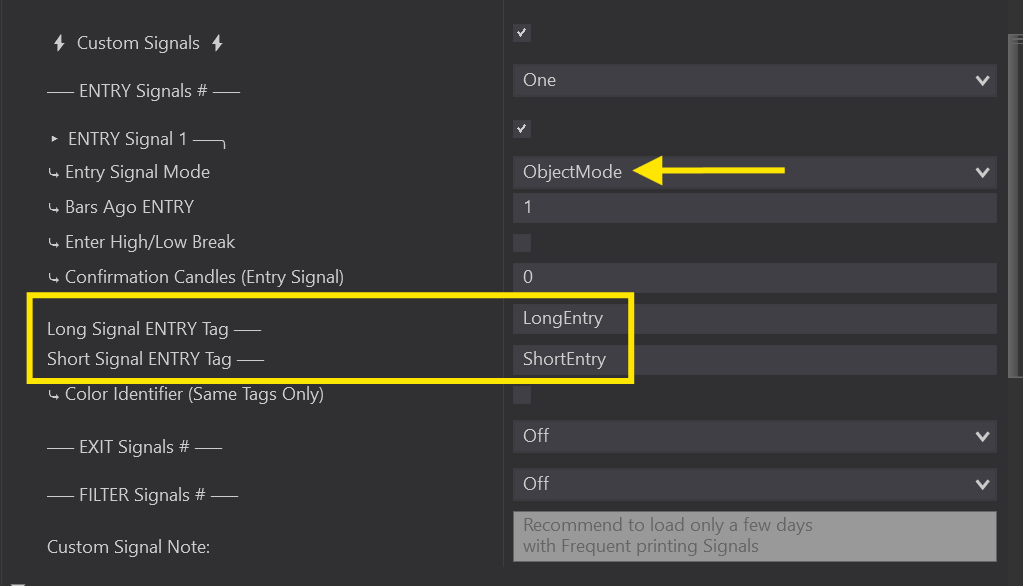
Under Auto Entries, select Custom Signals to open up all the Custom Signal Properties.
If using a Draw Object like an arrow or text, ensure OBJECT MODE is selected.
- Long Signal ENTRY Tag: “LongEntry”
- Short Signal ENTRY Tag: “ShortEntry”
- NOTE that every signal will be different! ALWAYS check the TAG and validity of your signal.
You must make sure your TAG is spelt correctly, includes any spaces, capitals, or numbers that are found before the Current Bar Code. You can find more information on this inside the ‘What Signals Work With The Predator‘ section of the guide.
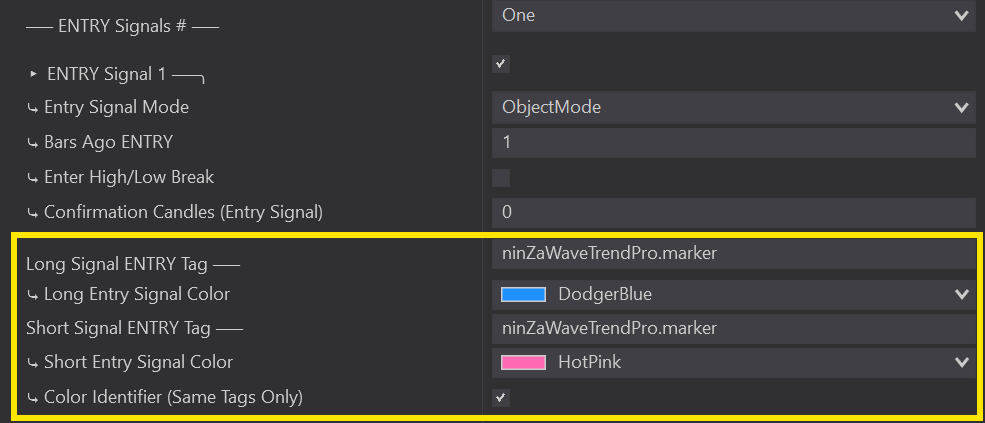
Color Identifier
If your Signal Tags are IDENTICAL they will require a Colour Identifier. Only use a Colour Identifier if your Tags are the same, it is not required if your Tags are already different.
Select the Colour Identifier Box and you will see Long & Short Signal Colours appear. Select the EXACT Colour that corresponds to your Tag as shown in the Drawing Objects Properties. Same as your Tag, if you select the wrong colour The Predator will not be able to validate your signals.
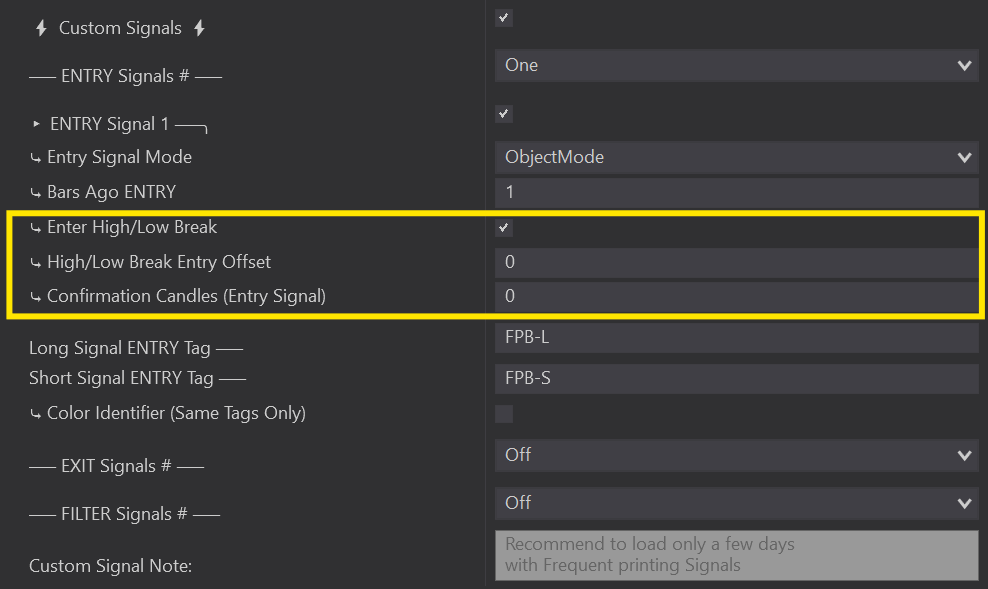
Enter At Break
Selected:
⤷ Once the signal is detected, the price will need to break above/below the previous bars High/Low in order to submit the order.
⤷ Long signal will need to break above the previous bars high.
⤷ Short signal will need to break below the previous bars low.
Unselected:
⤷ Will enter a trade as soon as it detects the Signal.
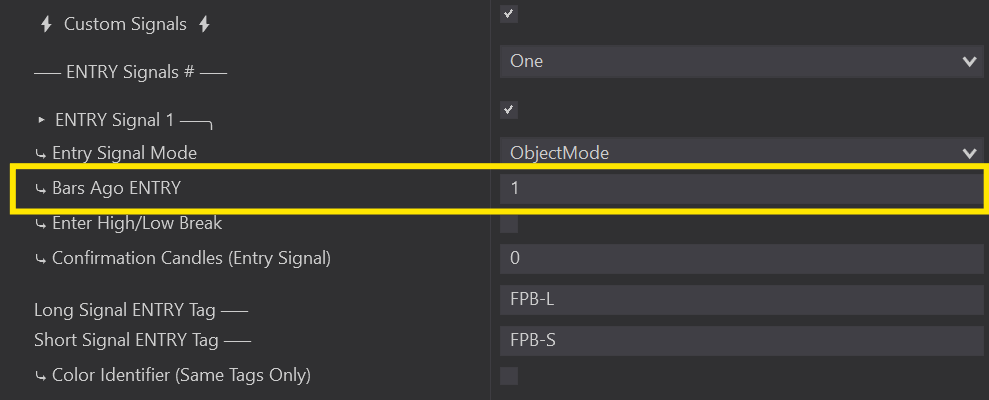
Bars Ago Entry
⤷ How many bars the signal system will look back to detect a signal.
⤷ 99% of signals require Bars Ago ENTRY with a value of ‘1’. This means that as soon as a new bar opens, it will detect a signal from one bar to the immediate left.
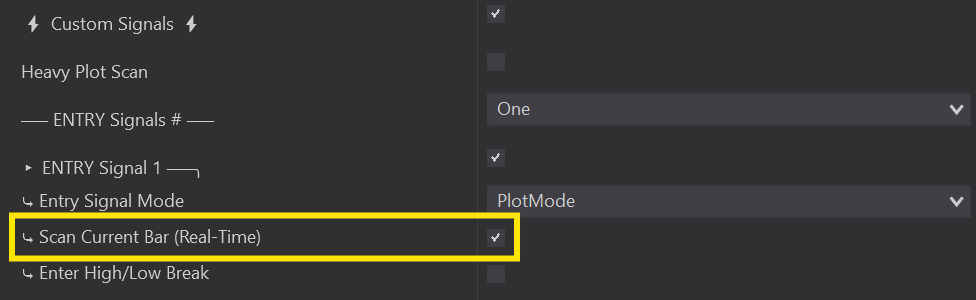
If your signal creating inidcator or strategy prints a signal only when the bar closes. You MUST use Bars ago ENTRY 1.
⤷ Bars Ago ENTRY ‘0’ should ONLY ever be used for indicators/strategies that create signals while the current bar is still forming.
⤷ Having Bars Ago ENTRY 0 with an indicator that does NOT print on the same bar that is currently forming will cause the Predator to NOT take that trade!
It is recommended to test by running your strategy on Playback or live on a sim! Running this on Historical back test may cause signals to appear delayed. Non historical testing will give the most accurate results.
2. Plot Value Signals
Regular Signal Entry
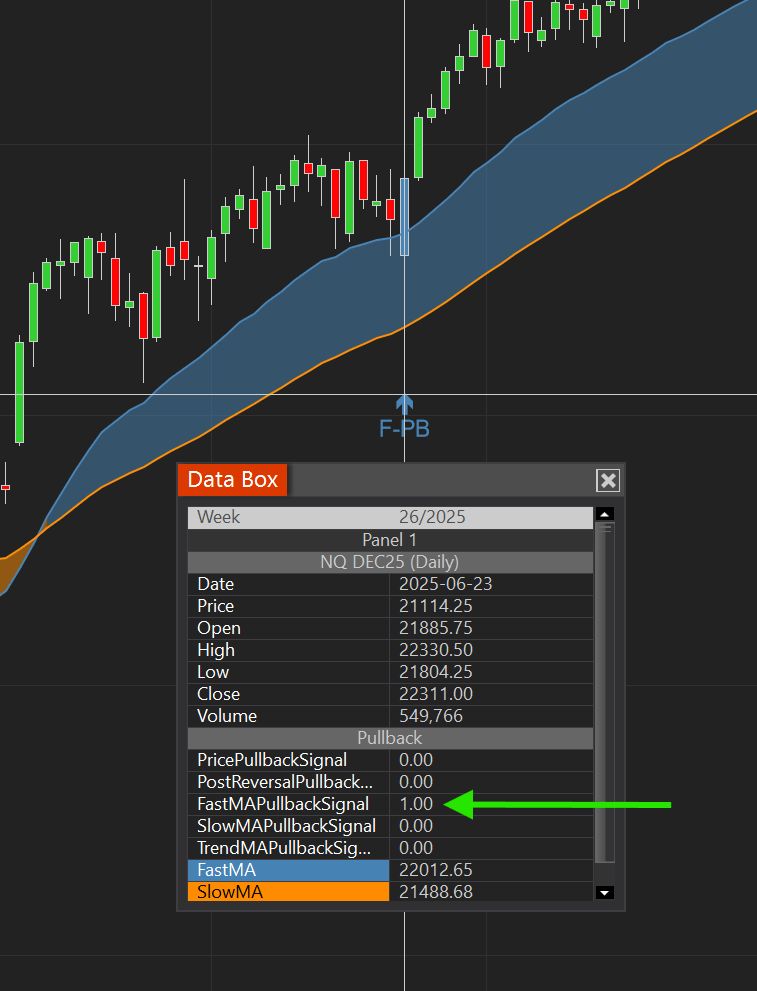
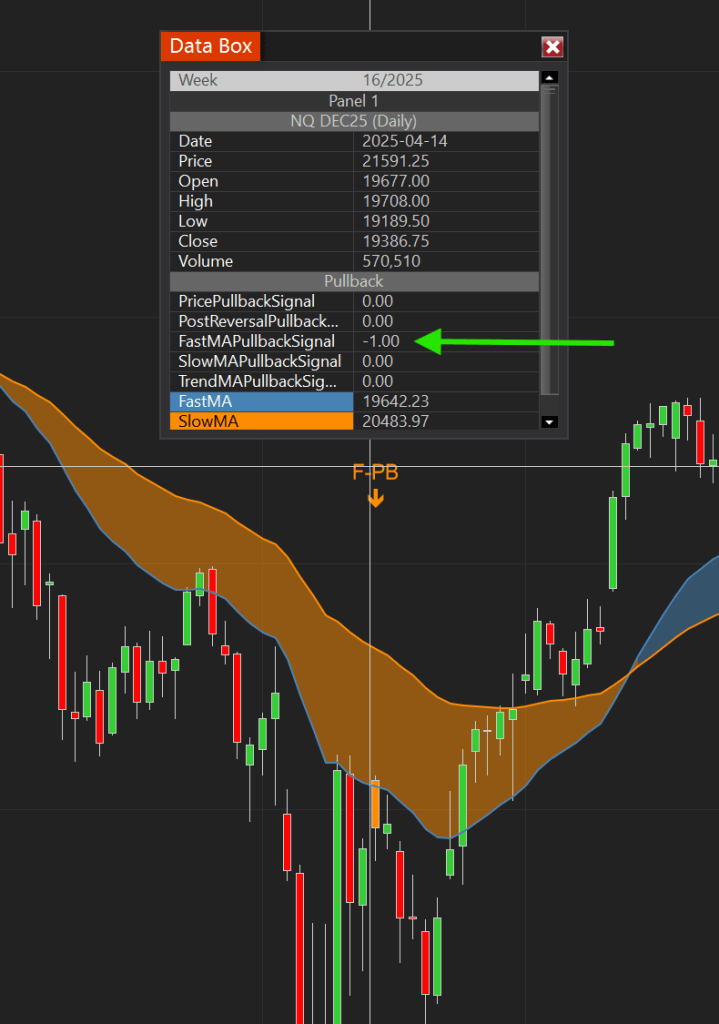
With your Indicator loaded on the chart, open up your Data Box so you are able to identify the Plot values.
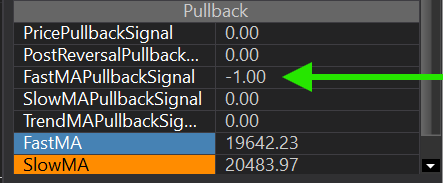
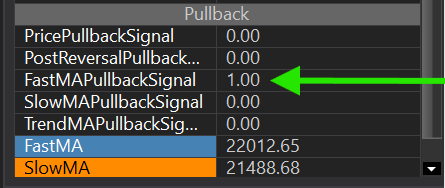
Hovering over the signal will identify any potential values we may be able to use.
Eligible Plot value signals include:
- +1/-1 value signals.
- N/A or 0 value before the signal – then displays the current price over the signal.
- The Plot crossing X static value (RSI or Stochastics crossing above 10 for example)
- Price crossing a value.
Not all Indicators are coded the same way, so ensure you are confirming each Indicator Plot Signal.
Once you have your Plot Signal Information. Right Click on the Chart -> Strategies
Under Auto Entries, select Custom Signals to open up all the Custom Signal Properties.
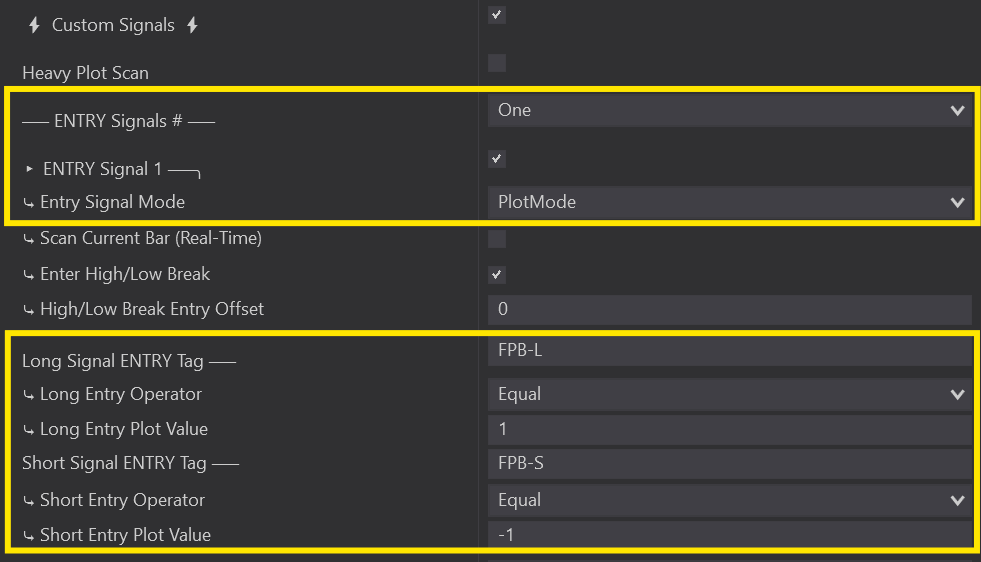
Here is where you will set up your Entry Signals – you can select up to 3 Entry Signals.
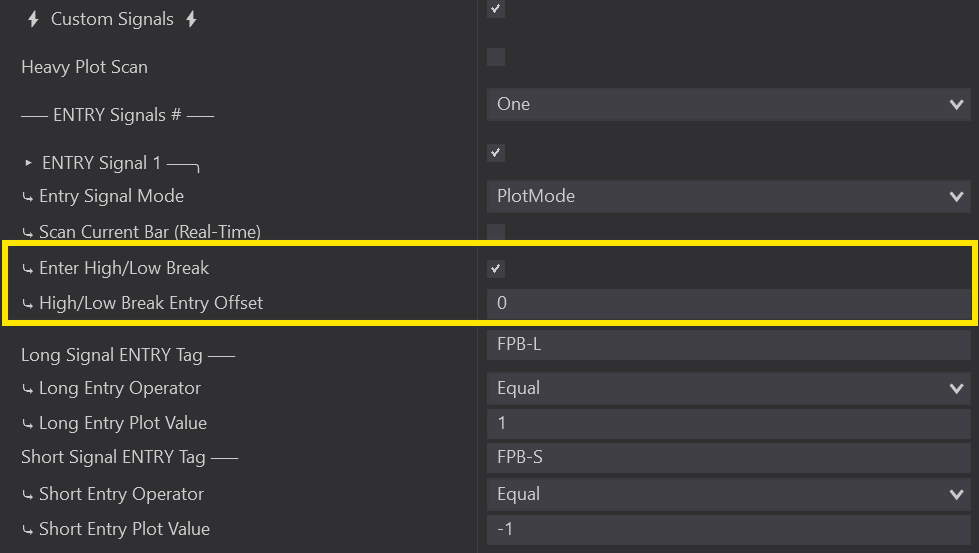
Make sure you have PlotMode selected if using plots!
By default, The Predator will automatically be set up using a +1/-1 Plot Signal Value.
Change the value and operator to match up with your signals. See Plot video above for examples.
Do NOT Worry about the Signal TAGS with PLOTS. They will be selected from a drop down later! Leave them blank for now!
Set up all of your Predator Properties to suit your needs and once ready, enable to Predator on your Chart.
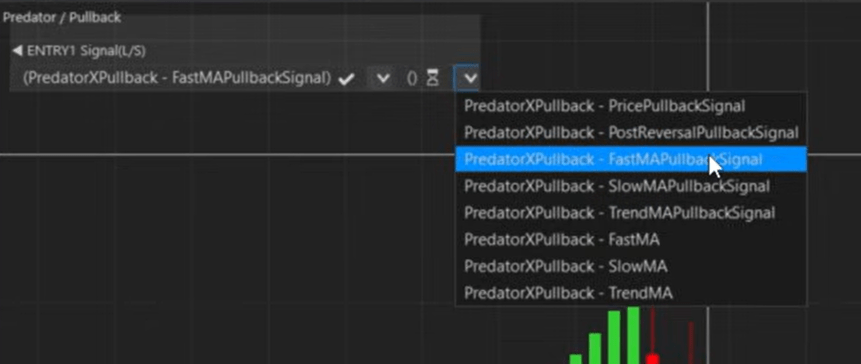
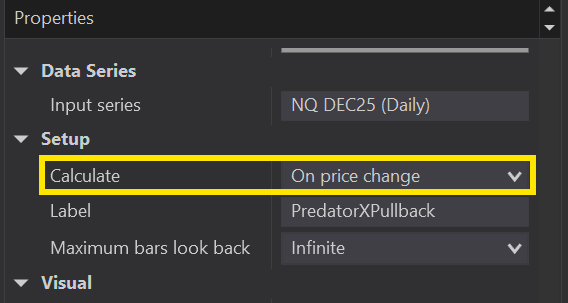
Once enabled, wait for a price change in the market OR use the PLOTS button on your top tool bar. This will generate the plots in the drop down box in the validation system.
Ensure you select the correct Plot that is producing your signal.
Once your Validation System is complete, we always suggest disabling and then re-enabling the Predator to ensure all changes take effect. The Predator will now take any trades that fall within your Parameters.
For more Entry Signal examples, make sure to watch the video at the beginning of the Plot Signal Section above.
Enter At Break
Selected:
⤷ Once the signal is detected, the price will need to break above/below the previous bars High/Low in order to submit the order.
⤷ Long signal will need to break above the previous bars high.
⤷ Short signal will need to break below the previous bars low.
Unselected:
⤷ Will enter a trade as soon as it detects the Signal.
Finding Plot Values
Some Plots may be hidden due to them being ‘Transparent’.
This is common practise with these types of signals as it will help prevent your chart from squishing down if you have ‘Auto Scale’ turned on.
Your vendor should have a guide if the indicators have these values or you can follow steps in the video to reveal them (If it has them).